
Designing your Club Logo: Tips and Tricks
Use the built-in Logo maker or text-to-image AI tools to create your Club’s new identity!
Designing your Club Logo: Tips and Tricks
Table of Contents
- Using the built-in Logo Generator to create a simple logo
- Leveraging text-to-image AI for more complex designs
- Editing your AI-generated creations
- Useful tools
Get designing!
There are two main options we suggest for the creation of your logo: Using the built-in MFL Logo Generator, or generating a more complex one with new text-to-image AI tools and making slight adjusting touches to them.
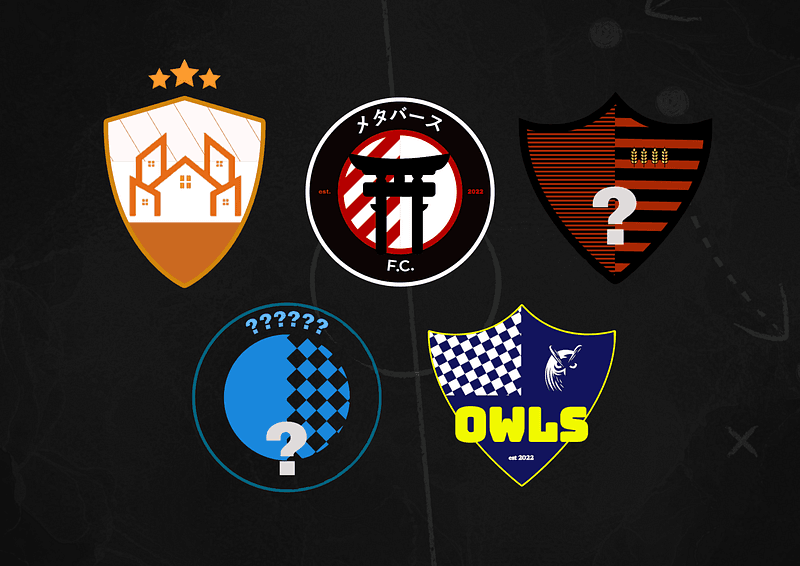
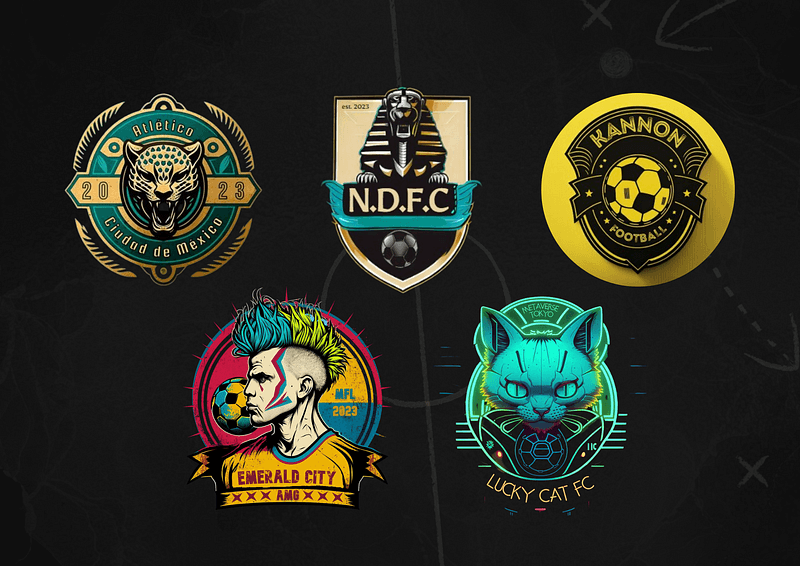
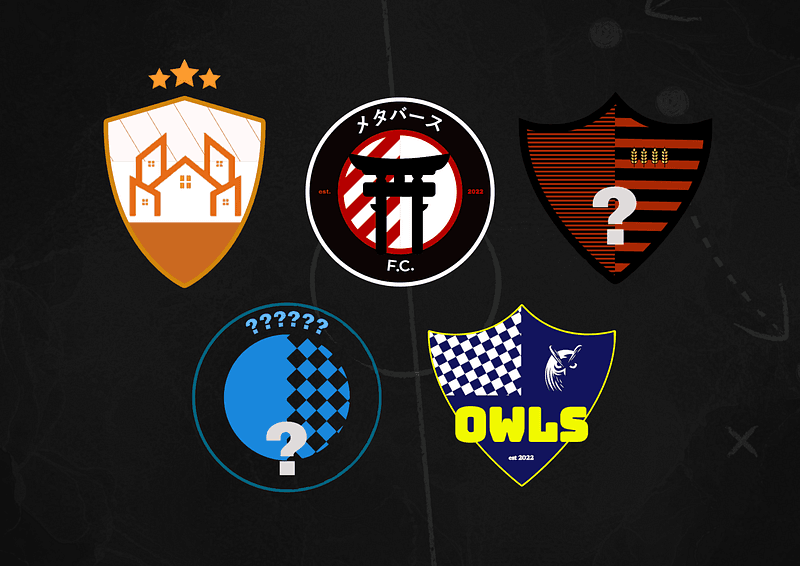
LEFT: Logo Generator creations — RIGHT: AI-generated and edited logos
No matter which you choose, we’ve got some useful tips and advice on how to make the most out of these tools and create a logo for your MFL Club that you can be proud of.
Use the Logo Generator
Want to create a simple yet effective logo for your Club? Look no further than the built-in tool we created: the MFL Logo Generator!
It’s fairly easy to use and provides you with many ways to customize pre-existing templates and patterns to make a unique, clean-looking logo for your Club.
We’ve made a video tutorial to show you how it works, check it out:
Quick tutorial on using the Logo Generator to quickly create a simple yet effective logo!
Leverage the power of AI
Using text-to-image AI tools such as Midjourney or Bing AI can be very efficient way to create an amazingly detailed logo that matches your Club’s identity within minutes.
There are many tutorials out there to get the best out of tools like Midjourney. One of them is brought to you by none other than valued community member and fellow Club Owner, Duff!
Check it out:
Duff’s Midjourney tutorial for making your Club logo
If you’re the reading type or want to go more in-depth, here are some additional tips to help you out:
Step 1: Make up your mind!
Select the tool you want to use using the links above. For Midjourney, you’ll have to hop in their Discord server or add the bot to your own server.
Know what you’re looking for in terms of branding. You’ll at least need to think of a main emblem, colors and an overall style before you proceed. Sadly, these tools are not (yet) very good at writing text clearly or accurately, but you can also let the AI know your Club name for inspiration.
Step 2: Prompting
You now have to give instructions to the AI in the form of a prompt. Prompt engineering is quickly becoming a whole discipline of its own, and is one of the trickiest parts in all of this. The Midjourney Discord is full of tips and tricks on how to get the best results, and a quick Google search on that topic will also yield many results.
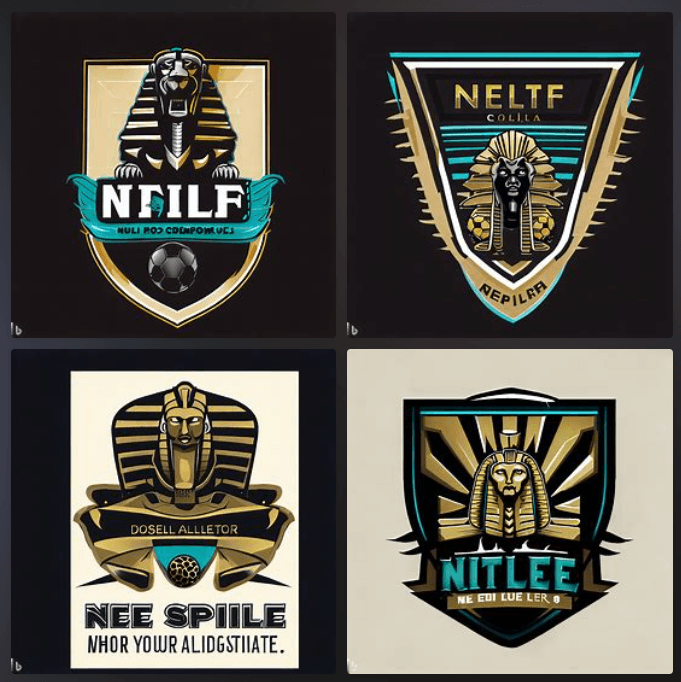
You can, however, get satisfactory results pretty quickly with a bit of practice. Here’s the prompt I used with Bing AI to get the below results for my Cairo-based Club, Nile Delta FC on the first try!
Full logo with text
soccer club logo “Nile Delta FC”, realistic sphinx emblem, vector, egypt theme, black and gold with minor turquoise accents, historic, no photorealistic details, thick outline, sports logo, football club
Note: When using the Midjourney bot, you’ll have to type the command /imagine before your prompt. Also, it’s important to Upscale the image you picked before downloading it.
Without text
Another option is to generate a logo without text, so that you can add it later and not have to remove anything. Here’s the prompt I used:
sleek and modern design logo featuring a sphinx in a clean and geometric style, vector, egypt theme, black and gold with minor turquoise accents, historic, no photorealistic details, thick outline, sports logo, football club
In most cases, you can also give negative commands like “no text” as part of your prompt.
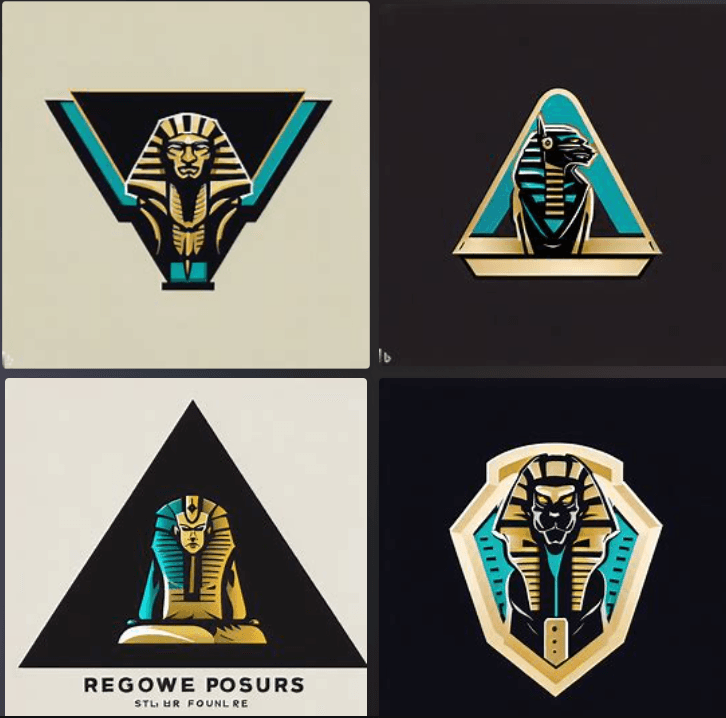
Well, one of them has text, but it’ll be easy to get rid of it!
Time to edit!
Whether you need to remove existing text to add it, like in the first example, or only add text to your design, you’ll need an image editing app. Save your favorite new creation and throw it into a design tool like Canva or Pixlr. I personally use Canva for most of my quick-editing work.
Step 1: Covering up existing text (if needed)
Use either the Draw tool or a shape to cover the existing text. Make sure to use the color picker (eye dropper icon) to draw over it with the same color.
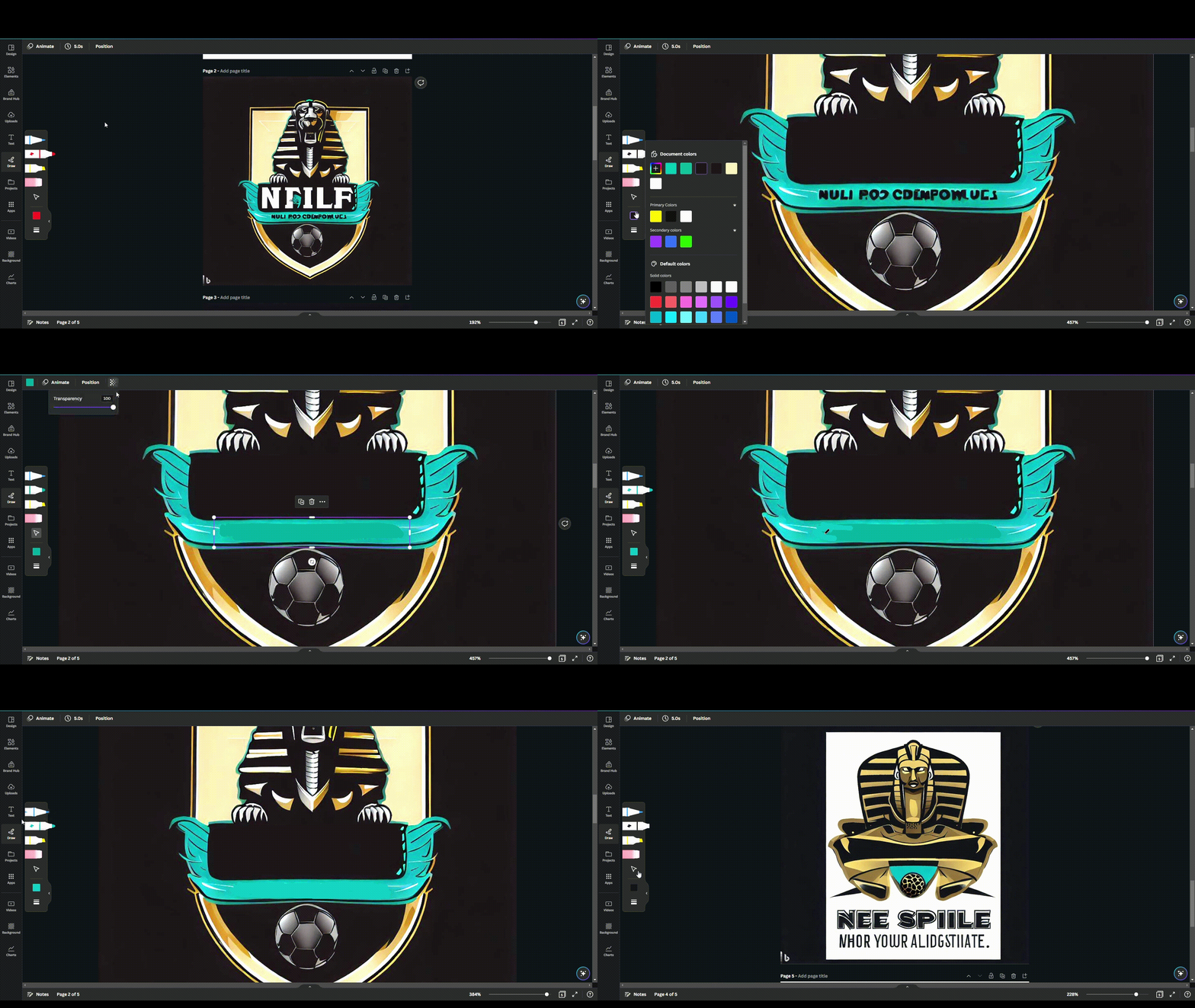
Remove AI-generated text to add your own using apps like Canva
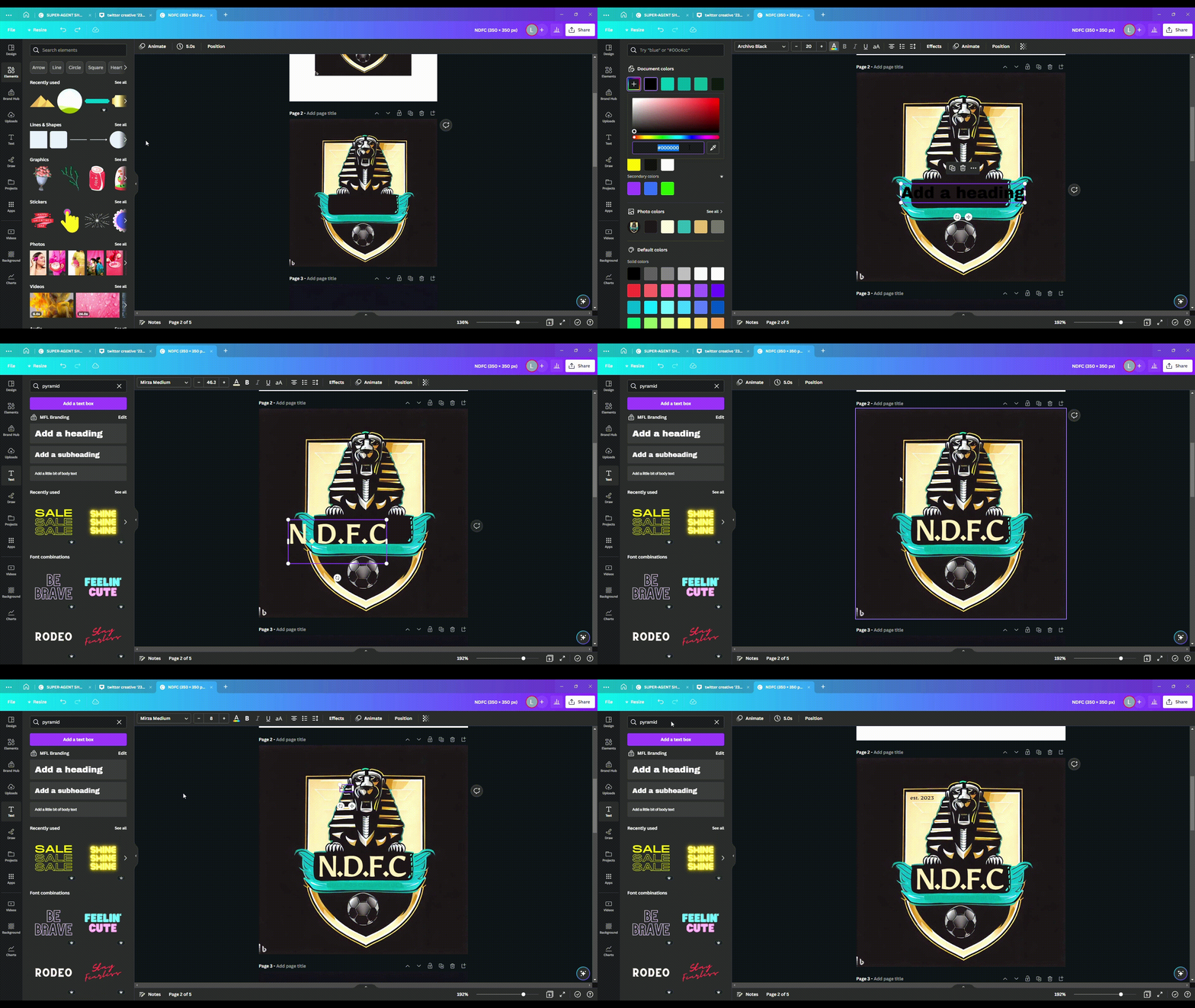
Step 2: Adding your own text
Use to Text tool to find a font that you like and tinker with the size, effects, and colors!
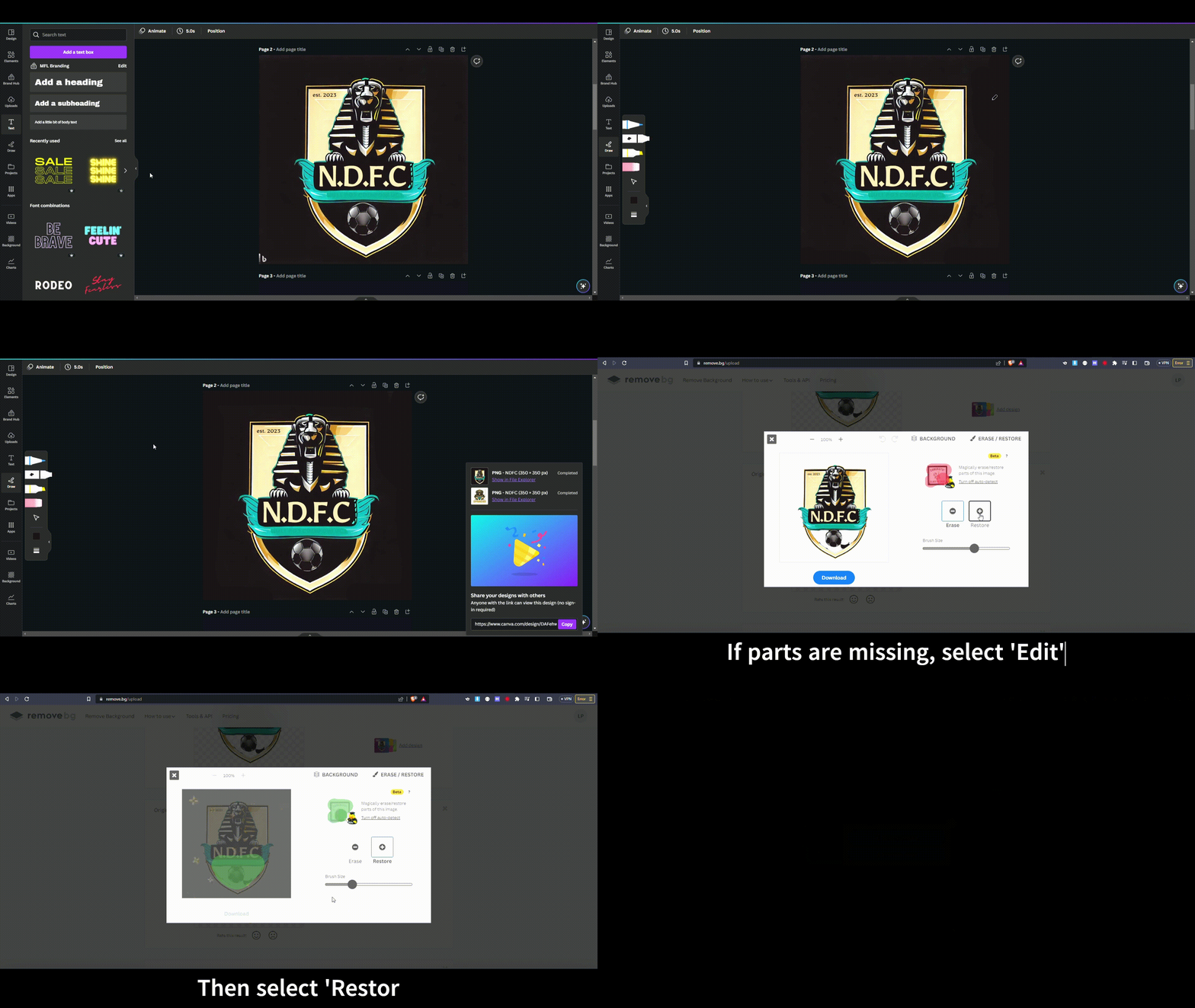
Step 3: Removing the background
To remove the background color, go to https://remove.bg, upload your newly edited image, and download it again! If the tool removed part of your image together with the background, you can use the brush to restore the missing bits by clicking on ‘Edit’, then ‘Erase / Restore’.
By following these guidelines and tips, you can create a name and logo that accurately represents your club and is recognizable. Remember to take your time and create something that you’re proud of, and consider using AI tools like Midjourney to streamline the design process.
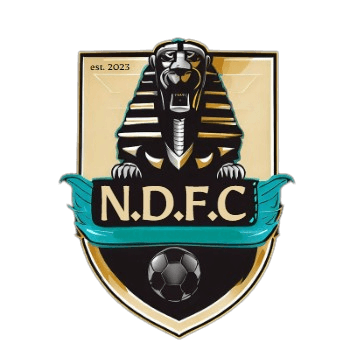
Voila!
Useful tools you can use
Here’s a list of tools that can be useful to generate and edit your new logo:
Text-to-image AI
Editing apps and tools
If you need help, you can always ask away on Discord! I can pretty much guarantee someone will be willing to lend a hand.
MFL reserves the right to alter or revert any established Club to its Club License stage if the name or logo do not meet the guidelines or standards set in the Club Creation interface and/or this article.
Happy designing!
Lucas
By Lucas on March 30, 2023.
Exported from Medium on March 19, 2026.
Share this article